Vercel Blob
Connect Vercel Blob so Dina can upload your recordings and generate a shareable link in seconds.
Vercel Blob is the quickest way to get shareable links working in Dina. Once it's connected, every recording you export gets uploaded to your own storage, and Dina hands you a public link automatically.
What to expect — You'll create a Blob store on Vercel, grab a token, and paste it into Dina. The whole thing takes about three minutes.
Step 1 — Create a Vercel account and a Blob store
- Go to vercel.com and sign in (a free account is all you need).
- In the top navigation, click Storage.
- Click Create Database, then select Blob.
- Give your store a name — something like
dina-sharesworks perfectly. - Choose a region close to you, then click Create.
Your Blob store is ready instantly.
Step 2 — Copy your token
Inside the store you just created, click the .env.local tab. You'll see an environment variable called BLOB_READ_WRITE_TOKEN — this is the value Dina needs.
Click the Copy button next to the token value to copy it to your clipboard.
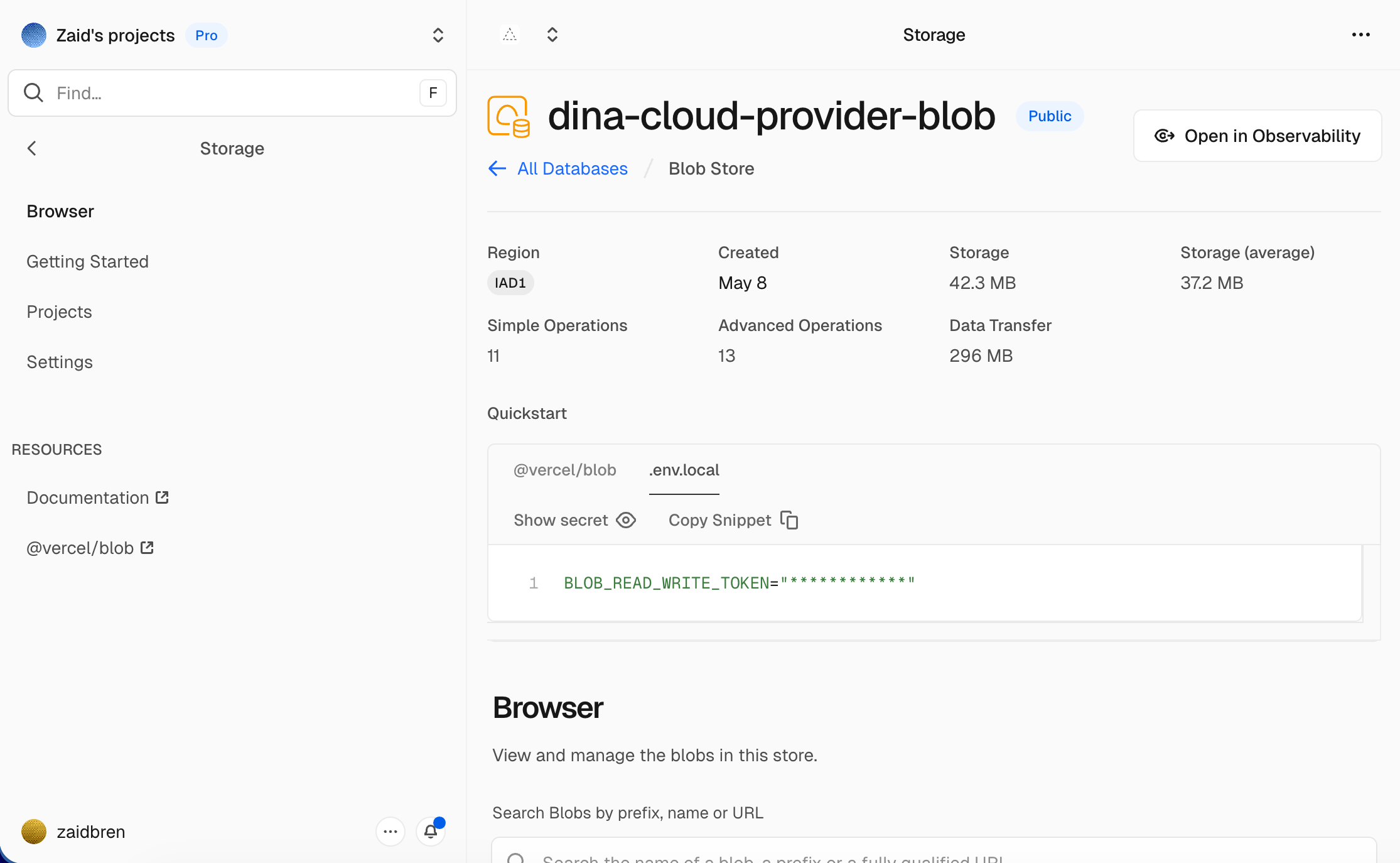
Keep your token safe — This token gives full read and write access to your store. Don't share it or paste it into public places. If you ever need to revoke it, go back to the Vercel dashboard, click Tokens, and generate a fresh one.
Step 3 — Paste the token into Dina
- Open Dina on your Mac.
- Press ⌘+, to open Settings.
- Go to the Cloud tab.
- Select Vercel Blob from the provider list.
- Paste the token you copied into the Read/Write Token field.
- Click Save.
Dina stores the token securely in your Mac's Keychain — it never leaves your device.
Step 4 — Share your first recording
- Open any project in Dina.
- Click Export, then choose Shareable Link.
- Click Export and Share.
You'll see Dina move through three stages:
Exporting → Uploading to your cloud… → Your video is liveOnce it's done, a shareable link is copied to your clipboard and a preview opens. That's it — anyone with the link can watch your recording.
Troubleshooting
| Problem | What to check |
|---|---|
| "Upload failed: 401 Unauthorized" | The token was pasted incorrectly. Go back to Vercel, copy it again, and re-enter it in Settings → Cloud |
| "Upload failed: 403 Forbidden" | The token was revoked. Create a new one in Vercel and update Dina |
| Share page shows a broken video | Re-export the recording. If the issue continues, check the macOS Console for [Blob] messages |
| "Provider not configured" appears before export | Re-open Settings → Cloud, confirm Vercel Blob is selected, and click Save |
What's next
- Prefer AWS? Check out the Amazon S3 guide to connect your own bucket.
- Want to skip managing storage entirely? Dina Cloud handles everything for you — no tokens, no setup.